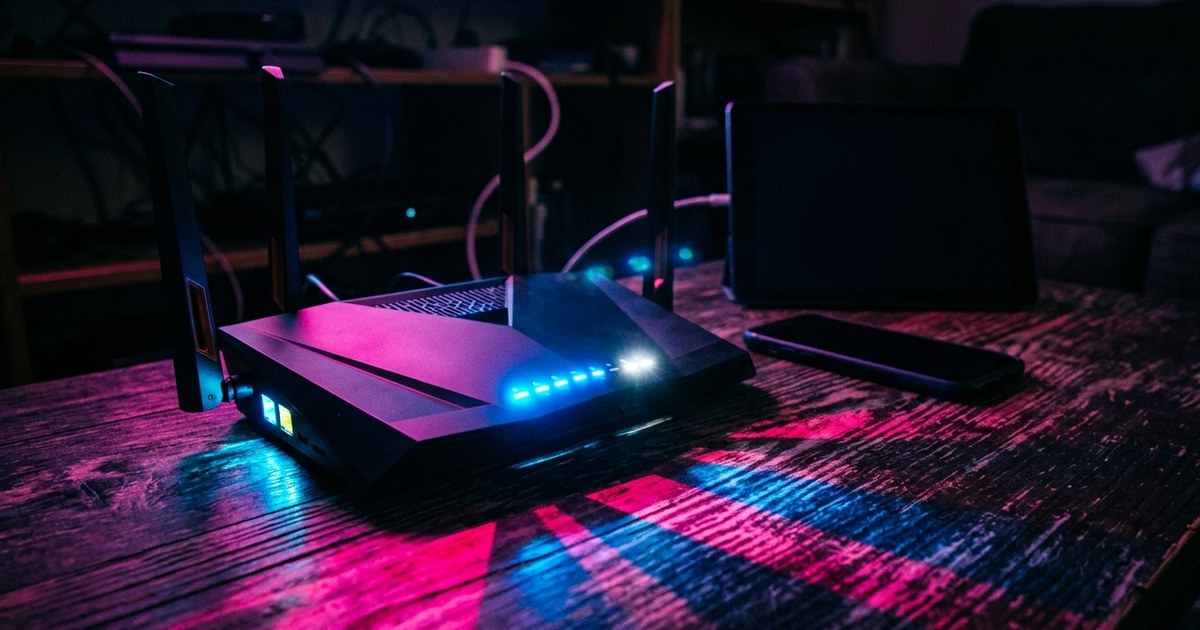
Okay, so I am not a network engineer. I don’t even pretend to be. But I DO know that moment of low-level panic when you pull up your router admin page and see a device name you don’t recognize sitting right there on your home network like it owns the place.
Something like `UNKNOWN-B4:6D:C2` just… hanging out. Connected. Using your WiFi.
That string of letters and numbers? It’s actually telling you something. You just need to know how to read it.
What even IS a MAC address, in plain English?
A MAC address is the permanent serial number built into every single device that can connect to a network — your phone, your laptop, your smart TV, your kid’s tablet, even your doorbell camera. It looks like this: `B4:6D:C2:XX:XX:XX`. Twelve hexadecimal characters, usually separated by colons.
Think of it as the hardware’s fingerprint. Unlike an IP address — which changes every time you reconnect to a network — a MAC address is burned in at the factory and doesn’t change. It’s yours forever.
The first six characters are called the OUI, or Organizationally Unique Identifier. That chunk is assigned by the IEEE to the company that made the device. The last six characters are assigned by that manufacturer to the specific unit.
Why does this matter for families specifically?
Most parents have no idea how many devices are on their home network at any given moment. We just… add stuff. Ring doorbell, check. Smart thermostat, check. Three gaming consoles, a laptop per kid, tablets — it adds up fast.
But here’s the thing: if someone gets your WiFi password — a neighbor, someone who visited six months ago, anyone — their device stays connected until you change it. And it’ll just show up in that device list with nothing but a MAC address and a weird placeholder name.
Knowing how to decode those addresses means you can actually audit what’s on your network. Which, honestly, everyone should be doing occasionally.
How do you actually do a MAC address lookup?
Free tools exist specifically for this. You paste the first six characters of any MAC address into a lookup database — sites like maclookup.app pull from the IEEE’s official OUI database, which has over 58,000 registered prefixes — and it spits back the manufacturer name.
So if you see `48:31:06` on your network, the lookup tells you that prefix belongs to NVIDIA. If you own an NVIDIA Shield or a gaming GPU, that’s probably yours. If you don’t? Worth a second look.
The databases update regularly as new manufacturers register OUI blocks, so the info is current — not some static list from 2019.
What if the lookup comes back blank or says something weird?
This happens. Not every device returns a clean, obvious manufacturer name — and that’s not automatically suspicious.
A few reasons a lookup might not tell you much: some devices use randomized MAC addresses now (most modern iPhones and Android phones do this by default for privacy on public networks), and some companies register OUI blocks under parent company names that don’t match their consumer brand. So your Samsung TV might technically show up as a subsidiary you’ve never heard of.
On the flip side: if you look up an address and the manufacturer is a company based somewhere unexpected that makes networking hardware you’ve never heard of — that’s worth paying attention to. Not panic, just attention.
How do you find the MAC addresses of devices on your network?
Your router’s admin page is the fastest way. Usually you can get there by typing `192.168.1.1` or `192.168.0.1` into your browser, logging in with your router credentials (check the label on the back if you’ve never changed them — and if you’ve never changed them, also maybe do that), and looking for a section called “Connected Devices” or “DHCP Clients.”
You’ll see a list of everything currently connected, often with the device name if it broadcasts one and the MAC address. That’s what you paste into the lookup tool.
If a device is named something generic — `android-abc123`, `UNKNOWN`, `ESP_` something — that’s when the MAC lookup becomes actually useful.
Should you actually be worried about unknown devices?
Probably not — but it’s not dumb to check. The most common culprit for an “unknown” device is usually something you own but forgot about. An old tablet you haven’t used in a year, a smart plug, that cheap smart bulb you installed three years ago and then totally forgot existed.
The scenario that actually warrants concern is if you see a device you genuinely can’t account for AND it’s consistently showing up connected. One-time mystery appearances are usually just neighboring devices momentarily pinging your network. Consistent presence is the flag.
If something doesn’t check out, the move is simple: change your WiFi password and monitor the list again. You don’t need to be a tech person to do basic network hygiene — you just need to know where to look. And now you do.
One more thing worth knowing: MAC addresses and privacy
Modern smartphones — iPhones since iOS 14, most Android phones running recent versions — have started using randomized MAC addresses when connecting to WiFi networks. This is actually a privacy feature. It means your phone broadcasts a fake MAC address to make it harder for stores, airports, and sketchy public networks to track your physical movements.
The downside for home networks: your own phone might show up as something unrecognizable on your own router. If you’ve already gone through all the other devices and can’t place one, check your phone settings — most devices let you toggle “Private WiFi Address” off for trusted home networks so your router can identify it properly.
It’s also worth knowing, if you’re thinking about network security more broadly, that MAC address filtering alone — where you whitelist specific addresses — is not a real security measure. MAC addresses can be spoofed with software. Real security is a strong password and keeping your router firmware updated.
None of this requires a computer science degree. It just requires knowing the right place to look — which is the thing most people are never told.
Your home network is way more crowded than you probably realize, and most of what’s on it is totally fine. But now you can actually check instead of just hoping. That’s not a bad thing to know.
But what do I know? I’m just the person who got mildly obsessed with my router one Tuesday night and ended up learning way more about IEEE databases than I planned to.
Frequently asked questions
What is a MAC address and why should families care about it?
How do I look up who owns a MAC address?
How do I find the MAC addresses of devices on my home network?
Is an unknown MAC address on my WiFi dangerous?
Why does my iPhone show up as an unknown device on my own router?
Can MAC address filtering keep my home network secure?
What does it mean if a MAC address lookup comes back blank?